How to use Tasks on a Mobile Device

Tap "More" from the Neela home screen : Tap Tasks in the navigation to see your current task list, with open items at the top and completed ones below so you always know what still needs attention.
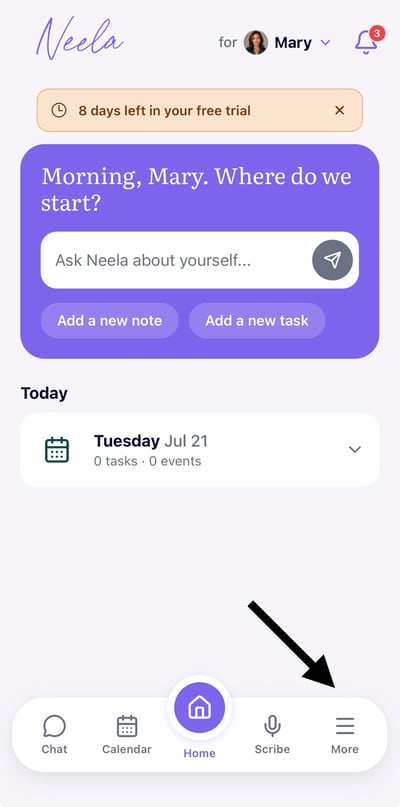
 

IMG_1335

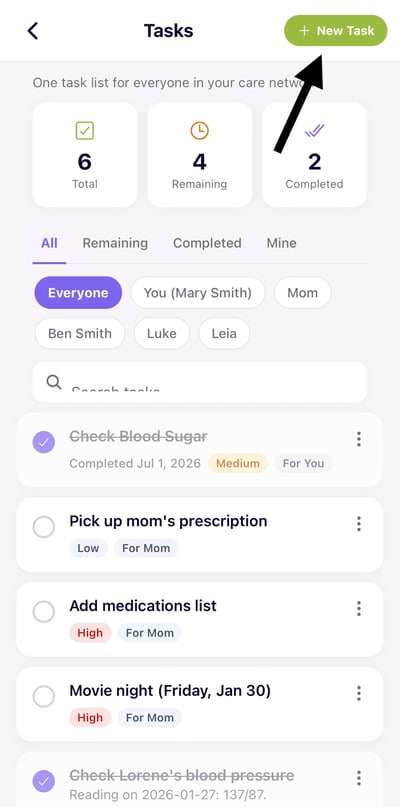
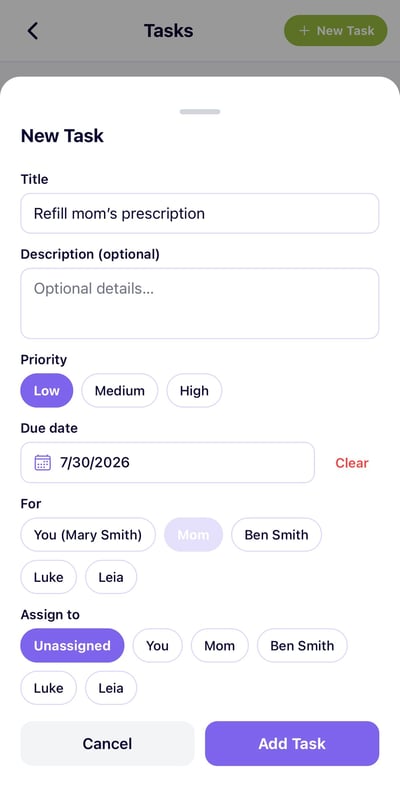
Add a new task: Tap Add Task and type in what needs to be done, whether it's a quick errand like "pick up prescription" or a bigger follow-up like "call Dr. Chen's office about the referral."
IMG_1337

Assign it to someone if needed. If you have a family member or someone else helping with care, you can assign the task to them directly so everyone knows who is responsible for what without a flurry of texts.
IMG_1338

Check things off as you go. Tap the checkbox next to a task to mark it complete, and it will move to the bottom of your list so you can see your progress and focus on what's still open.

A few helpful tips

  • Review your list regularly. A quick look at your task list at the start or end of each day helps you stay on top of care coordination responsibilities without needing to keep a mental running tab of everything at once.

  • Add tasks right after appointments. Doctor visits often end with a list of follow-ups, so it's worth taking two minutes to add them to Neela before you leave the office while they're still fresh.

  • Use tasks for the small stuff too. Things like "ask about parking validation" or "bring the insurance card" are easy to forget but just as worth capturing as bigger to-dos.

  • Assigning tasks is a great way to share the load. If you have siblings, a partner, or anyone else involved in care, Tasks makes it easy to divide responsibilities and keep everyone on the same page without extra coordination.