
How to use Vault On Mobile
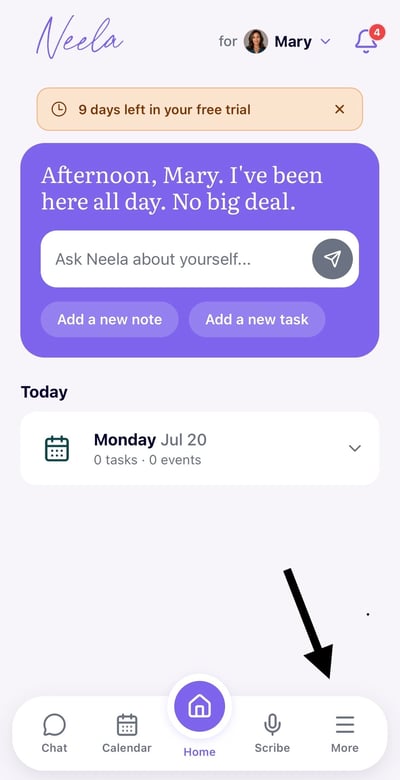
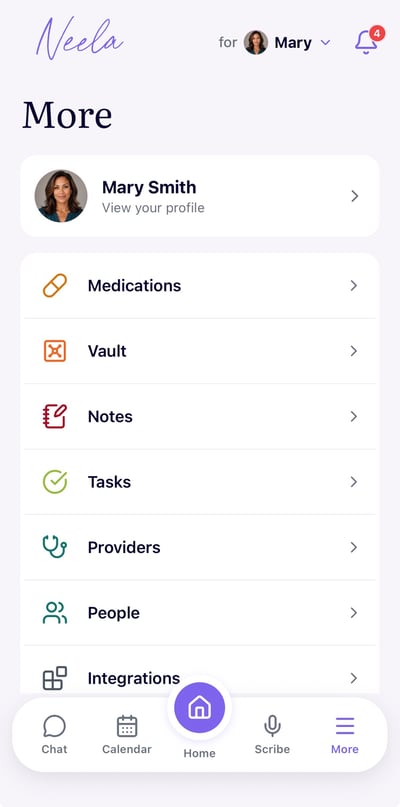
Click More from the Neela home screen. Tap Vault in the navigation to see your document library
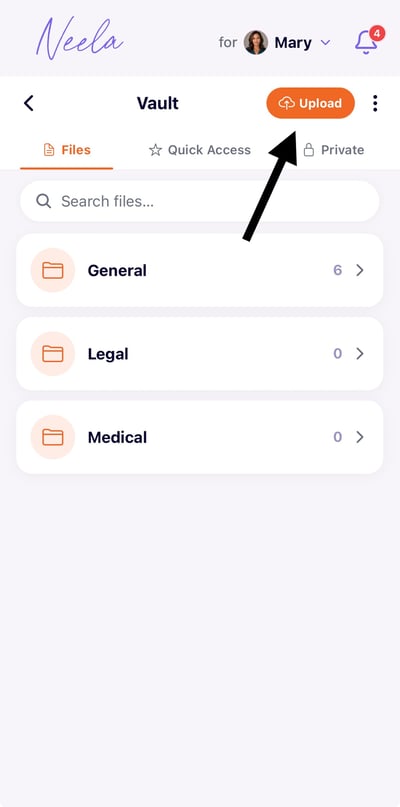
Upload a document or photo. Tap the Add button to upload a file from your phone, take a photo of a physical document, or select something from your camera roll so it gets stored right away. PDFs, images, and text files are supported.
Give it a name so it's easy to find. Add a short label, like "Blood test results, April" or "Insurance card," so you can find it quickly without opening every file to figure out what it is.
Choose whether to share it with Neela. You can decide whether Neela should reference this document when answering your questions or keep it stored privately for your eyes only, and you can change this setting at any time.
Pull it up whenever you need it. Tap any document in the Vault to open it, and if you've shared it with Neela, you can also ask her questions about it directly in Chat without needing to read through the whole thing yourself.