
How to use Tasks on the Neela Web App
Open the Tasks tab. Tap Tasks in the navigation to see your current task list, with open items at the top and completed ones below so you always know what still needs attention.
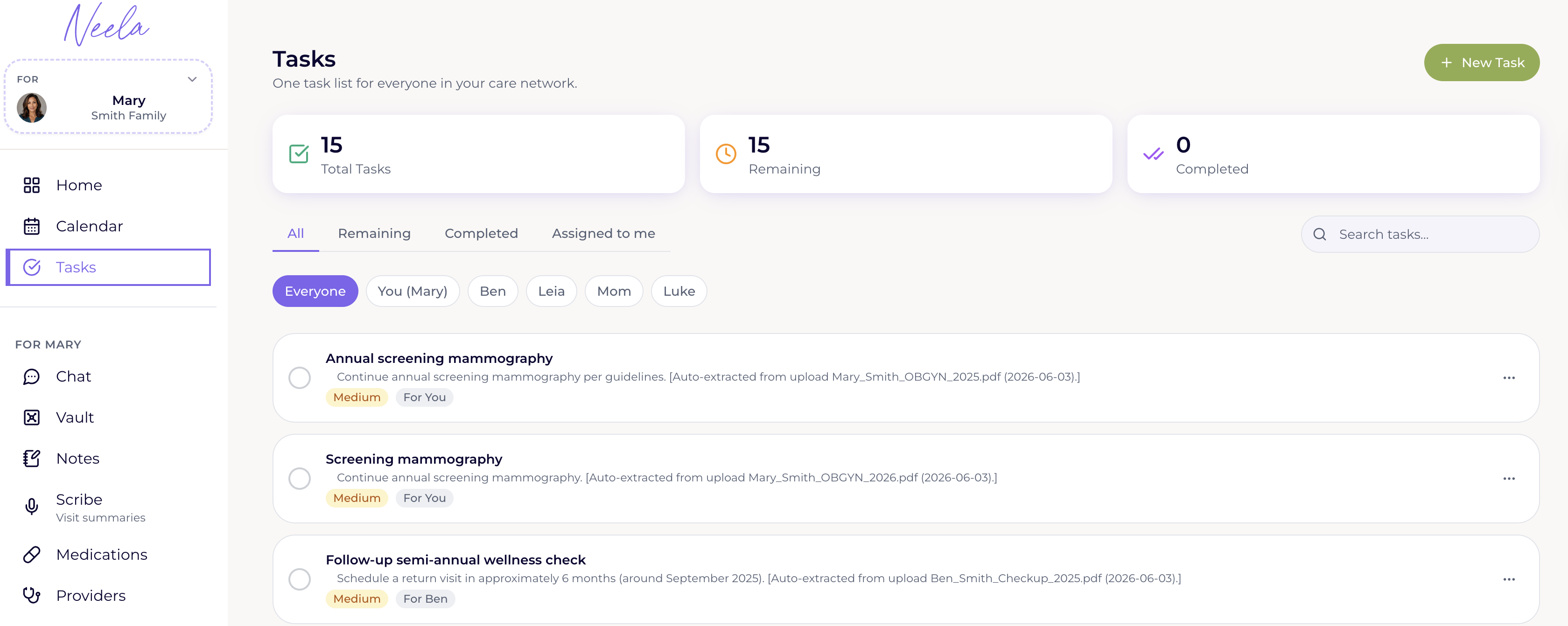
Add a new task: Tap Add Task and type in what needs to be done, whether it's a quick errand like "pick up prescription" or a bigger follow-up like "call Dr. Chen's office about the referral."
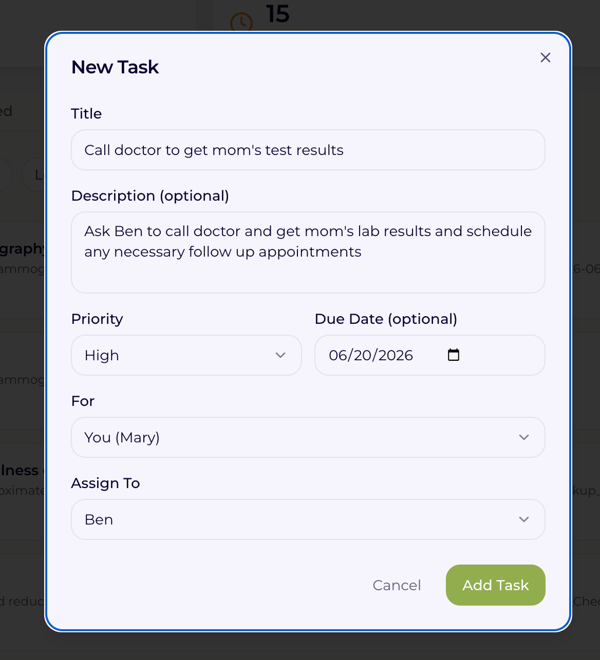
Assign it to someone if needed. If you have a family member or someone else helping with care, you can assign the task to them directly so everyone knows who is responsible for what without a flurry of texts.
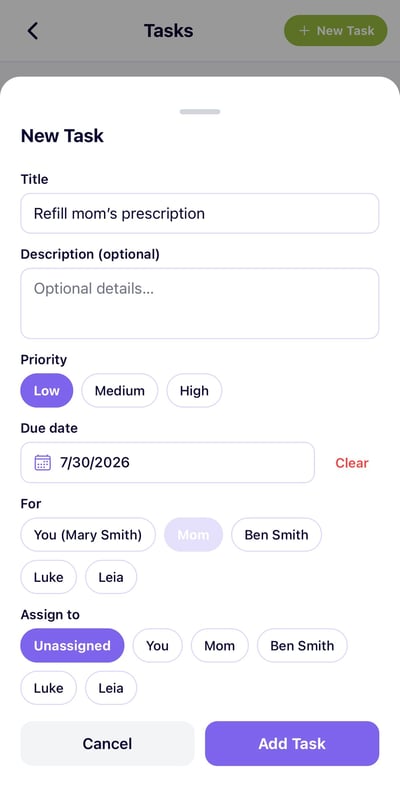
Check things off as you go. Tap the checkbox next to a task to mark it complete, and it will move to the bottom of your list so you can see your progress and focus on what's still open.
Review your list regularly. A quick look at your task list at the start or end of each day helps you stay on top of care coordination responsibilities without needing to keep a mental running tab of everything at once.